
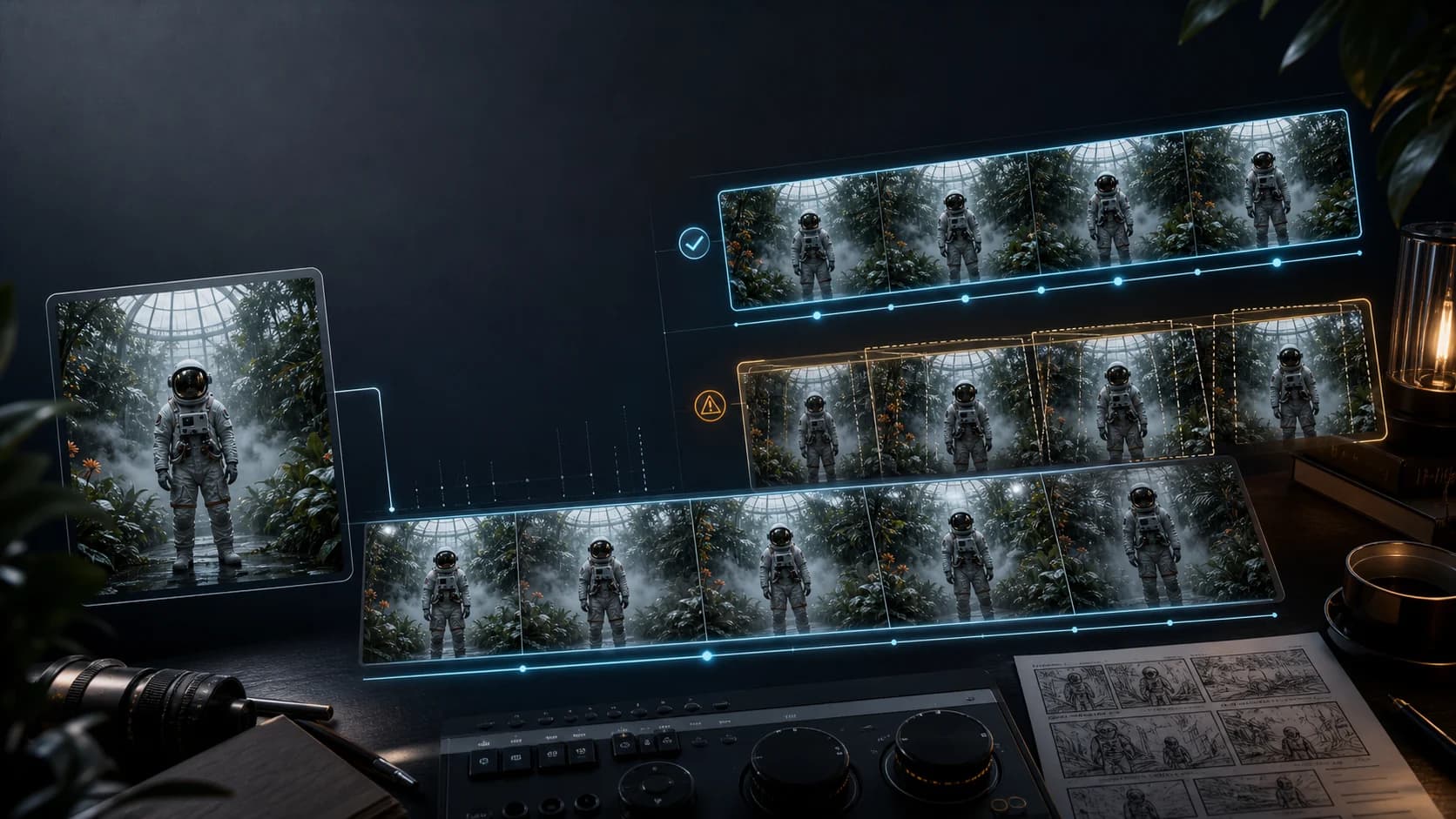
Runway Gen-4.5 Image to Video: Add Motion Without Losing the Shot
Animate one finished image with Runway Gen-4.5 while protecting subject identity, product geometry, composition, lighting, and camera intent.
The hardest image-to-video job is not making a still image move. It is making the right parts move without asking the model to redesign a frame that is already approved.
Runway Gen-4.5 treats the uploaded image as the first frame. That image supplies the composition, subject, lighting, and visual style; the text prompt should mainly describe what changes over time.[1] This division of labor is the key to preserving a product, character, or campaign frame.
The practical rule is simple: finish the still first, then prompt motion rather than appearance.
The short workflow
- Prepare a clean source image at the intended delivery ratio.
- Mark the details that may move and the details that must remain stable.
- Write one subject action, one environmental motion, and at most one camera move.
- Use the shortest clip that can complete the action.
- Review the output against the source frame, not against a vague idea of “cinematic quality.”
- Change one variable per retry.
This guide is for a single, finished starting image. It is not a multi-reference character workflow, an end-frame transition, or a video-editing workflow.
Start with an image that can survive animation
Image-to-video can amplify a weakness that is easy to ignore in a still. Runway's current guide specifically warns that blurry faces, hands, or other artifacts may become more visible once the image moves.[1]
Before uploading, inspect the frame at full size:
- Are the face, fingers, product edges, logos, and small text already coherent?
- Is the intended subject clearly separated from the background?
- Does the body pose have a plausible next movement?
- Is there enough space in the direction the subject or camera should travel?
- Is the crop already close to the final aspect ratio?
A tight product crop with the bottle touching both side edges leaves no room for a lateral camera move. A runner whose feet are fused to the road will not become anatomically sound because the prompt says “natural stride.” Fix those issues in the still.
If composition is approved, do not use the animation prompt to improve it. Requests such as “make the person more attractive,” “replace the background,” or “change the outfit” invite a new visual interpretation. Perform those changes in an image editor first, approve the new frame, then animate it.
Separate the shot into moving and protected parts
Write a small motion brief before writing the prompt.
| Layer | Decide before generation | Example |
|---|---|---|
| Subject | The one action that must occur | The model turns her head slightly toward camera |
| Environment | Secondary motion that makes the frame live | Curtains move gently in a light draft |
| Camera | One camera behavior, or none | Locked camera with unchanged framing |
| Protection | What must not be redesigned | Face, jacket, bottle label, table layout, warm light |
| End state | What the shot should resolve to | She holds eye contact and becomes still |
This is more useful than a long adjective list. “Dynamic, cinematic, high-energy, realistic motion” does not say which pixels should change. A motion brief gives the model an action and gives the reviewer a pass/fail standard.
Write prompts about time, not the still image
Runway recommends that image-to-video prompts focus almost entirely on motion. Its beginner structure is: “The camera [movement] as the subject [action].”[1]
Use a slightly expanded version:
[Camera behavior]. [Subject action and speed]. [Environmental motion].
[Visible end state]. Preserve [the details that cannot drift].
For a character portrait:
Locked camera; unchanged medium-close framing. The woman takes one quiet breath,
then turns her eyes toward the window without moving her shoulders. A few loose
hairs respond gently to the breeze. She holds the final gaze. Preserve her face,
short black haircut, silver earrings, jacket seams, background, and warm side light.
For a product frame:
Very slow five-degree dolly to the right. The bottle remains upright and fixed at
the center of the table; its label stays facing the camera and remains unchanged.
Condensation beads travel slowly down the glass while the curtain behind it moves
slightly. Preserve bottle geometry, typography, cap, table edges, and lighting.
For a vehicle shot:
The camera tracks parallel to the car at the same speed. The car travels steadily
forward; wheels rotate naturally and road reflections slide across the bodywork.
No change in vehicle shape, paint, windows, badge, or lane position. The shot ends
with the original side profile still readable.
The preservation sentence is not a mathematical lock. Gen-4.5 remains generative. Its value is to make the priority explicit and provide a checklist for review.
Use restraint when the composition matters
Large motion exposes parts of the scene the source image never defined. An aggressive orbit asks the model to invent the hidden side of a face, product, vehicle, or room. A rapid push-in asks it to synthesize fine detail beyond what exists in the starting frame.
If preservation is the priority, begin with one of these:
- locked camera plus subject micro-motion;
- slow dolly-in with no body movement;
- small lateral slide where the background has room for parallax;
- subtle handheld drift for a documentary frame;
- static subject with wind, steam, water, reflections, or light movement.
Avoid combining an orbit, crane, crash zoom, handheld shake, and a full-body action in one short clip. Even when the model understands every term, those instructions compete for a limited duration and require more unseen geometry.
A useful progression is:
- Generate a locked-camera version.
- If subject identity and geometry hold, add one small camera move.
- If the camera move holds, increase its distance or speed.
That sequence reveals whether drift comes from the subject action or the camera request.
Choose duration for the action, not for value
On Runway's web product, Gen-4.5 supports two- to ten-second outputs. The model costs 12 Runway credits per generated second, runs at 720p, and offers 24 or 25 fps; Gen-4.5 access requires a Standard plan or higher.[2]
A longer clip is not automatically better. It gives the model more time to depart from the initial frame. Use enough time for one action to start, develop, and stop.
| Intended motion | Sensible starting duration |
|---|---|
| Blink, breath, fabric or light movement | 2–4 seconds on Runway web |
| Head turn, product reveal, gentle camera move | 4–6 seconds |
| One complete physical action or sequenced camera move | 6–10 seconds |
ClipDance's current Runway Gen-4.5 integration exposes fixed 5-, 8-, and 10-second choices rather than every web duration. Start at five seconds when it can answer the creative question. The current ClipDance credit quote is 15 credits for five seconds, 24 for eight, and 30 for ten; that is ClipDance's own route conversion, not Runway's web-plan credit table.
A real same-source comparison—and what it does not prove
On January 28, 2026, AI educator Marin Method published a public image-to-video comparison using Kling 2.6, Luma Ray3 HDR, Runway Gen-4.5, and Veo 3.1 Quality.[3] The author states that all four received the exact same source image and video prompt. The visible comparison frame shows the same centered astronaut composition across all four labeled outputs, including Runway Gen-4.5.
That is relevant evidence for this workflow: one source frame can anchor a recognizable subject and composition while different models interpret motion, lighting, and physics. It does not prove that Runway won or that the outputs were equally controlled. The post does not disclose the random seeds, provider settings, duration, resolution, candidate count, rejected generations, or full cost. X did not display an AI-generated label or paid-partnership label when checked on August 14, 2026. ClipDance did not reproduce the comparison, and the full video could not be reviewed in this research session.
Treat the post as a real creator-reported same-input example, not a ClipDance benchmark. Its strongest lesson is methodological: keep the source image and prompt fixed when comparing routes, and record the variables the post leaves unknown.
Runway also published an official campaign workflow on February 2 using a single starting image, a generated hero image, storyboard frames, and Gen-4.5 Image to Video.[4] That supports the “approve stills before motion” sequence, but it is vendor-produced promotional material rather than independent evidence.
Runway web and ClipDance do not expose the same surface
Do not copy a Runway web tutorial step-for-step and assume every control exists in ClipDance.
| Capability | Runway web documentation | Current ClipDance integration |
|---|---|---|
| Text-to-video | Yes | Yes |
| Image-to-video | One starting image plus prompt | One starting image plus optional prompt |
| Duration | Any selection from 2–10 seconds | 5, 8, or 10 seconds |
| Aspect ratios | 16:9, 9:16, 1:1, 4:3, 3:4, 21:9 for I2V | 16:9, 9:16, 1:1, 4:3, 3:4 |
| Frame rate control | 24 or 25 fps | Not exposed in the current form |
| Output workflow | Favorite, upscale, download, and continue in Runway | Generation and retrieval through ClipDance's studio route |
| Runway web plan / Explore Mode | Product-specific access | Does not transfer to ClipDance |
Open image to video with Runway Gen-4.5 selected for the controls implemented here. The selected provider may be configured behind the route, so the live form and displayed credit quote are the contract for a ClipDance request. Runway account allowances, Explore Mode, and web editing tools are separate.
Review against the source with five checks
Watch the result once for the action, then compare it with the still frame by frame.
- Identity: Does the face, character, or product remain the same?
- Geometry: Do hands, wheels, packaging edges, furniture, and props keep their structure?
- Composition: Does the intended framing survive the camera motion?
- Light: Do shadows, reflections, and highlights respond consistently?
- Motion: Does the requested action have a clear start and end without a surprise cut?
Use a simple acceptance rule before generating. For a product clip, it might be: the logo remains readable, the bottle silhouette does not change, and the camera completes one slow move without cutting. A beautiful clip that fails any of those conditions is not an accepted product shot.
Save the source, prompt, duration, ratio, output, and reason for rejection. That record is more useful than remembering that “the last version looked better.”
Fix the smallest cause of drift
The face or product changes immediately. Inspect the source at full size. Replace it if the original contains blur, malformed details, or unreadable text. Then remove appearance adjectives from the motion prompt.
The camera move redesigns the scene. Reduce the move. Change an orbit to a small arc, a crash zoom to a slow dolly, or a handheld walk to a locked frame.
The subject keeps moving after the action. Add a visible endpoint: “she completes the turn, holds her gaze, and becomes still.” Shorten the clip if the action finishes early.
The background moves with the subject. Separate their instructions: “the bottle remains fixed; only the curtain and condensation move.”
The output inserts a cut. Ask for “one continuous shot” and remove competing actions. A prompt that describes three locations is asking for an edit, not a single animated frame.
Typography deforms. Treat text as fragile. Keep the object front-facing, reduce camera travel, and consider compositing approved typography back onto the generated clip in post.
Every retry changes something different. Return to the shortest version and modify one variable. If prompt, image, duration, ratio, and camera motion all change at once, the result cannot teach you which decision helped.
A compact pre-generation checklist
- The still is final, clean, and close to the delivery ratio.
- The prompt describes motion rather than redesigning the scene.
- There is one main subject action.
- There is no more than one camera move.
- Protected identity, geometry, layout, and light cues are named.
- The action has a visible endpoint.
- The selected duration is the shortest one that can complete the action.
- Success can be judged with three to five observable checks.
- Runway web features and ClipDance route controls have not been conflated.
The source image should do most of the visual work. The prompt supplies time. When those roles stay separate, Gen-4.5 has less room to redraw the shot and you have a clearer way to diagnose the result.
References
- [1] Runway. Image to Video Prompting Guide. Accessed August 14, 2026. Official prompt guidance for the current Gen-4.5 workflow.
- [2] Runway. Creating with Gen-4.5. Accessed August 14, 2026. Official web-product specifications and access details.
- [3] Marin Method (@MarinMethod). Public same-source image-to-video comparison on X. Published January 28, 2026. No AI-generated or paid-partnership label was visible when checked; ClipDance did not reproduce the test, and important generation variables were not disclosed.
- [4] Runway (@runwayml). Official single-starting-image campaign workflow on X. Published February 2, 2026. Vendor-produced example; no paid-partnership label was visible when checked.
Author

Categories
More Posts
How to Use Seedance 2.0: A Quick Guide to AI Video Generation
Learn how to use Seedance 2.0 to generate videos from text, images, and references. Covers all supported modes including text-to-video, image-to-video, video editing, and beat-sync.
Seedance 2.5 vs MiniMax H3: Performance, Editing Control, and Pricing
A measured Seedance 2.5 vs MiniMax H3 comparison covering one fight test, editing limits, verified H3 pricing, and a fair evaluation workflow for teams.
Seedance 2.5 First and Last Frame Prompt Workflow
Build a Seedance 2.5 first-and-last-frame prompt that connects two images with a clear path, stable physics, controlled camera motion, and a reproducible test.