
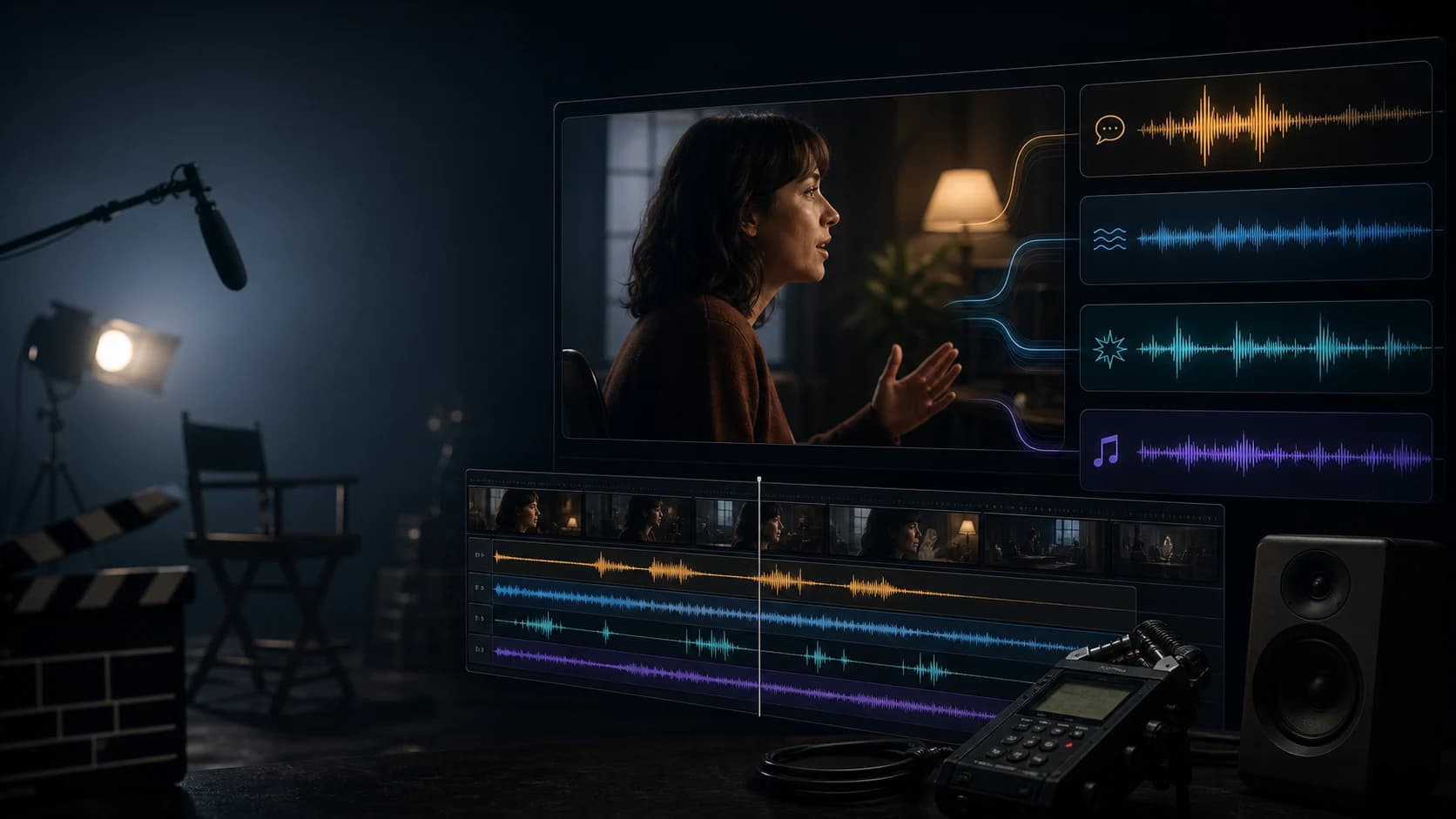
Which AI Video Generator Creates Video With Sounds and Voices?
Compare AI video generators with native audio, dialogue and lip sync, sound effects, uploaded-audio references, and post-production voiceover.
Which AI generator can create an entire video with sounds and voices? Seedance 2.5, MiniMax H3, Kling V3/O3, Grok Imagine 1.5, Vidu Q3, PixVerse V6, and some Veo 3.1 routes can generate picture and audio in the same request. That short answer hides the decision that matters: do you want the model to invent the voice, synchronize visible speech, create effects and ambience, follow an uploaded recording, or leave room for a final voiceover?
Those are different jobs. “Has audio” does not promise exact dialogue, convincing lip movement, editable stems, a preserved recording, or a finished multi-minute video.
This guide compares documented capabilities and the controls currently exposed on ClipDance as of August 13, 2026. It is not a head-to-head quality test. Provider and route can change what one model name actually supports, so the live model selector is the final contract.
The first-principles answer: native audio is a method, not a use case
Native audio means the soundtrack is generated with the picture rather than attached afterward. Four production needs sit underneath it:
- Dialogue and lip sync: a visible person says a new line, and mouth movement needs to follow it.
- Ambient sound and effects: footsteps, wind, traffic, impacts, room tone, or music should belong to the visible scene.
- Uploaded audio or an audio reference: an existing voice, song, rhythm, or soundscape should guide the video.
- Post-production voiceover: the script, narrator, pronunciation, timing, or approval process must remain under editorial control.
An audio reference is easy to misunderstand: “use this for cadence” is not the same as “preserve every sample.” If a recording must remain unchanged, keep it as the master track and edit pictures to it.
“Entire video” also needs a duration boundary. Current generators make shot-sized clips: Seedance 2.5 exposes 4–30 seconds, MiniMax H3 4–15 seconds, Kling V3/O3 5 or 10 seconds, and Veo duration depends on its route. A short social clip may fit in one generation; a three-minute explainer still needs several segments and an edit.
Current audio-capability matrix
| Model on ClipDance | Current generation modes | Audio behavior in the current form | Uploaded audio | Best reason to shortlist it | Important limit |
|---|---|---|---|---|---|
| Seedance 2.5 | Text, image, and reference-to-video | Generate Audio is available and on by default; the form describes synced speech, effects, and background music | Up to 10 WAV/MP3 references; the current ClipDance form requires at least one image or video alongside audio | Longer, reference-led shots that may combine speech and scene sound | 480p/720p here; reference audio does not guarantee exact voice or exact timing |
| MiniMax H3 | Text, first/last-frame image, and multimodal reference | Native stereo audio is part of the route; there is no audio-off toggle | Up to three audio references, but at least one image or video must accompany them | A compact multimodal brief with fixed 2K output and generated stereo sound | Audio is always returned, so replace or mute it in post when silence is required |
| Kling V3 | Text and image-to-video | Generate Audio is available and on by default | No audio-upload field | Short native-audio shots with optional first/last frames | Current choices are 5 or 10 seconds; audio costs extra |
| Kling O3 | Text, image, reference-to-video, and video edit | Generate Audio is available for text, image, and image-reference modes and is off by default | No audio-upload field; O3 references are images | Character-reference shots that also need newly generated audio | Video Edit exposes no audio control in the current form |
| Veo 3.1 Fast/Quality | Text, image, and provider-dependent reference/extension modes | Provider-dependent: the Fal form exposes Generate Audio; current Kie/APIMart forms do not | No audio-upload field | A short Veo shot when the selected route visibly offers audio | Do not infer audio from the Veo name; Veo 3.1 Lite is explicitly a no-audio route |
| Grok Imagine 1.5 | Single-image-to-video | Audio is generated in the same pass; no audio-off toggle | No audio-upload field | One-image social or product animation that can use an invented soundtrack | No text-to-video, reference stack, or silent-output control on the current route |
| Vidu Q3 | Text and single-image-to-video | Generate Audio is available and on by default | No audio-upload field | Short 2–8 second clips with optional generated dialogue, effects, or ambience | No reference-to-video, supplied audio, or documented language list |
| PixVerse V6 | Text, image, transition, and video extension | Generate Audio is available in all four forms and off by default | No audio-upload field | Short workflows that move among prompting, still animation, endpoints, and continuation | Audio availability does not establish dialogue accuracy or preserved source sound |
ByteDance describes Seedance 2.5 as a joint audio-video system,[1] MiniMax documents H3’s native stereo audio,[2] Google documents Veo 3.1 audio generation,[3] and Kuaishou describes Kling 3.0’s integrated audio and multilingual speech.[4] These broader capabilities do not override a route’s actual controls.
Choose by the audio job, not the model leaderboard
Choose Seedance 2.5 for mixed audio and reference-led scenes
The current Seedance 2.5 generator is the broadest audio input route here. Text- and image-to-video can create a new soundtrack; reference mode accepts audio, image, and video material. Although the upstream model supports audio-only references, the current ClipDance reference form requires at least one image or video alongside the audio. Its 30-second ceiling gives speech more room.
Use a quoted line when the model should invent the performance, and reference audio for cadence, mood, rhythm, or texture. Keep an approved recording outside generation when exact voice or timing must survive. The Seedance 2.5 native-audio and lip-sync guide covers its prompts in depth.
Choose MiniMax H3 when generated stereo sound belongs in every take
The current MiniMax H3 generator returns fixed 2K video with native stereo audio across text-, image-, and reference-driven modes. MiniMax’s official launch also positions H3 as a multimodal system spanning picture, motion, and sound.[2]
H3 fits environmental scenes where stereo sound is part of the idea. Its reference form accepts audio, but audio cannot be the only reference; add an image or video.
The trade-off is equally concrete. There is no Generate Audio switch. For silent b-roll or a production built around an approved narrator, plan to mute or replace H3’s generated track rather than assuming the request can return silence.
Choose Kling when the live mode has the right audio switch
Kling V3 exposes generated audio for text- and image-led clips. Kling O3 adds it to image-reference mode, useful when a recurring character carries into a newly voiced shot. Kling’s official materials describe broader speech and audio features.[4][5]
On ClipDance, neither Kling form currently accepts an uploaded audio reference. O3 Video Edit also has no audio control. Use Kling here when the soundtrack can be newly generated from text, not when a licensed song or an exact recorded voice must drive the result.
Choose Veo only after checking the provider-specific form
Google documents Veo 3.1 audio generation.[3] On ClipDance, the Fal-backed form exposes Generate Audio for text- and image-to-video; current Kie and APIMart shapes do not. Reference and extension modes also vary. Check the Veo 3 generator before planning.
This is the cleanest example of why a capability table cannot end at the model name. If the form does not show Generate Audio, do not write a production plan that assumes sound will appear.
How to prompt dialogue and lip sync
For visible speech, the prompt must solve three separate problems: the words, the vocal delivery, and the face. Keep the line short enough for the clip, show one speaker in a medium or medium-close shot, and prevent music from masking the voice.
One continuous 10-second shot. A barista faces the camera in a quiet cafe,
with her entire mouth visible. She says exactly: "The blue cup is ready."
One calm adult voice, clear English, moderate pace. No other speech.

After the final word, she places a blue ceramic cup on the counter.
A single ceramic tap is heard at contact. Low cafe room tone, no music.
Keep the voice above the ambience and hold the final frame for one second.
Adjust duration to the route. Quotation marks clarify the line but do not guarantee verbatim speech. Review words separately from mouth timing.
Two-person dialogue is a poor first diagnostic. It adds speaker assignment, turn-taking, eyelines, two faces, and mix separation. Qualify one speaker and one sentence first. Add the reply only after the route can reproduce the simpler contract.
How to prompt ambient sound and effects
Give each effect a visible cause and moment:
Locked wide shot of an empty bicycle workshop during light rain.
At the midpoint, the hanging metal sign swings once and taps the door frame.
One dry metal tap exactly at contact. Continuous soft rain outside,
faint room ventilation, no voices, no music, no off-screen footsteps.
“Cinematic sound design” leaves every decision open. Name the source, material, action, timing, distance, and what should remain absent. Ask for one hero effect before layering several decorative sounds.
The model sees the contact event while creating sound, but it can still miss sync, add an unexplained effect, or bury it under music. Measure audiovisual grounding.
Uploaded audio reference versus an unchanged master track
Use an audio reference when interpretation is acceptable: “follow this cadence,” “use this energy curve,” or “let these drum accents guide the movement.” The upstream Seedance 2.5 model accepts audio-only references, but the current ClipDance form requires a visual reference alongside audio. H3 also accepts audio only alongside an image or video. Kling and Veo forms in this comparison do not expose audio uploads.
Use a master track when alteration is not acceptable. That includes an approved spokesperson recording, a licensed song, a pronunciation-sensitive legal line, a client-approved voice take, or narration that must remain identical across languages. Generate visuals without replacement music where the route permits, then align them to the master waveform. With H3, mute the generated track during assembly because its current form has no audio-off control.
Only upload recordings the production may process and publish. File acceptance does not grant those rights.
When post-production voiceover is the better answer
Native speech matters when a visible character must originate the sound. For narration over b-roll, explainers, demos, or documentaries, separate voiceover preserves exact wording, pronunciation, localization, and independent mix control.
A practical split is:
- Generate the picture and scene sound together when footsteps, impacts, weather, or object sounds must align with visible action.
- Record or synthesize narration separately when no mouth is visible or the script must be exact.
- Keep music as its own licensed track when edit timing and usage rights matter.
- Mix the accepted elements in an editor, then normalize loudness for the delivery platform.
This is still an AI-video workflow. “Entire video with voices” does not require every layer to come from one model call.
A repeatable audio-video acceptance plan
Use a route-qualification test before committing a campaign. This plan measures whether a route fits the job; it does not claim that the models were benchmarked for this article.
- Freeze one brief. Use the barista prompt above: 16:9, one speaker, one sentence, one contact effect, low ambience, no music. Record the route’s allowed duration.
- Record the contract. Log model, provider if visible, mode, duration, quality, audio setting, references, prompt, and cost. Different providers count as different routes.
- Generate three candidates. Keep all results. If a seed is available, record it, but do not pretend seed behavior is comparable on routes that expose none.
- Listen without watching. Transcribe the line. Mark missing, changed, or extra words; extra speakers; audible distortion; music that was not requested; and whether the cup tap exists.
- Watch muted. Check identity, face stability, mouth visibility, cup action, and contact frame.
- Review picture and sound together. At normal speed, judge whether the performance reads naturally. At half speed, compare the waveform transient with cup contact and inspect phrase starts and endings.
- Score six dimensions from 0 to 2. Score wording, voice continuity, lip timing, effect timing, ambience/mix, and visual integrity. Zero is unusable, one needs repair, and two is deliverable for the intended placement.
- Apply hard gates. If exact copy is required, any changed word fails. An extra speaker fails. For a contact effect, set the project’s allowed sync tolerance in frames before review; do not move it after hearing the result. Reject clipping or an inaudible line regardless of the total score.
- Calculate accepted-output cost. Divide all credits or spend across the three attempts by the number of passing clips. A cheaper generation is not cheaper when none can ship.
- Change one variable next. Shorten the line, remove music, simplify the action, change the shot size, or switch the route—only one per round.
The answer to “which AI generator can create an entire video with sounds and voices?” is therefore a shortlist, not a universal winner. Start with Seedance 2.5 when audio references or a longer mixed scene matter; H3 when generated stereo sound is part of every take; Kling for short newly voiced character shots; Grok for one-image animation; Vidu for compact text- or image-led clips; PixVerse when transition or extension is part of the job; and Veo only when the selected provider visibly exposes audio. Move exact narration, licensed tracks, and approval-sensitive dialogue into post whenever preservation matters more than one-click generation.
References
- [1] ByteDance Seed. Seedance 2.5 official model overview.
- [2] MiniMax. MiniMax H3 official launch overview.
- [3] Google Cloud. Veo 3.1 model documentation.
- [4] Kuaishou. Kling AI 3.0 launch announcement.
- [5] Kling AI. Kling AI Video 3.0 model guide.
Author

Categories
More Posts

Seedance 2.0 free guide: what works, what doesn't
Real Seedance 2.0 free options in 2026: 3 register-gift credits, third-party trials, and why every 'unlimited free' site is a scam. With cost math.
Dreamina Seedance 2.0: What It Offers, the Pricing Controversy, and What to Know
Dreamina gives you Seedance 2.0 from ByteDance directly — but a 3-4x mid-subscription price hike, payment issues, and no working customer support have pushed many users to look elsewhere.
The 10 Best AI Video Generators in 2026: Free to Professional
Compare the 10 best AI video generators in 2026 by controls, workflow, verified pricing, free access, output limits, and the best use case for each tool.