
PixVerse V6 Review: Four Video Modes, Practical Limits, and How to Test It
An objective PixVerse V6 review covering text-to-video, image animation, frame transitions, video extension, current limits, and a repeatable evaluation workflow.
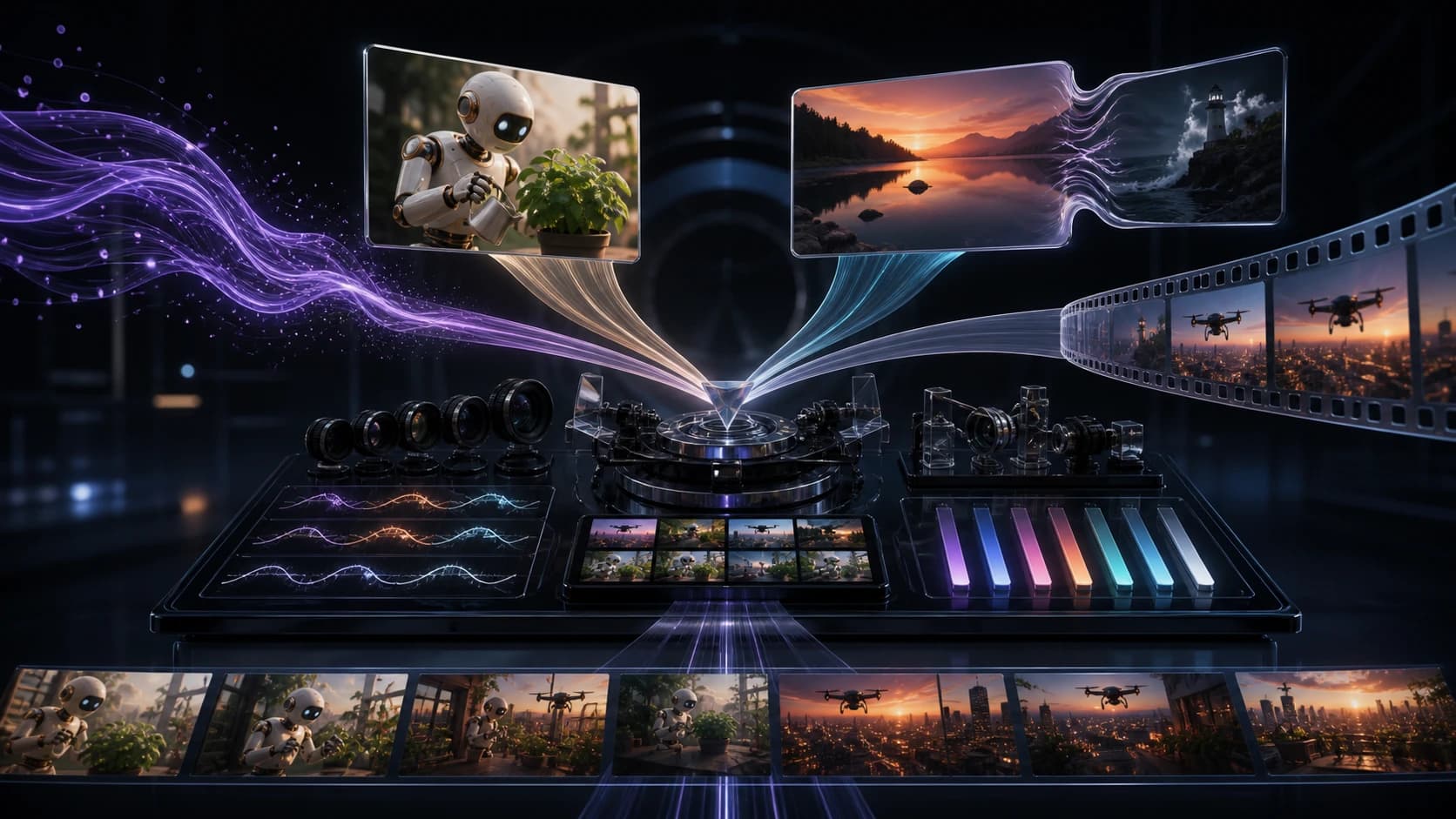
PixVerse V6 is more interesting as a small video toolkit than as a single text-to-video model. In the current ClipDance integration, it can start from a prompt, one image, a pair of frames, or an existing video. Those entry points cover ideation, animation, transitions, and continuation.
That breadth is the clearest reason to consider it. It is also easy to overread. Supported controls do not prove that every face will stay stable or every extension will preserve continuity. ClipDance has not run a published, controlled PixVerse V6 benchmark. This review therefore separates verified configuration from quality questions a team still needs to test.
The short verdict
PixVerse V6 is a sensible candidate when a project moves among several short-form jobs. Its current ClipDance route supports clips from 1 to 15 seconds, resolutions from 360p to 1080p, and optional generated audio in all four modes.
It is less obviously suited to work that depends on several identity references, motion transfer, supplied audio, or timeline editing. Those inputs are not exposed here. Nor should “up to 1080p” be confused with guaranteed production quality. Resolution says nothing by itself about anatomy, temporal consistency, or prompt adherence.
Best reason to shortlist it: one model covers four distinct starting points.
Main reason to test before committing: each mode removes or changes controls, so a workflow that succeeds in text-to-video may not transfer directly to image, transition, or extension.
Review boundary: the capability details below are verified against the current ClipDance model configuration. Any judgments about likely use cases are workflow recommendations, not claims of unpublished hands-on results.
What PixVerse V6 currently exposes
The PixVerse video generator offers four tools on ClipDance. Duration, resolution, and optional generated audio are shared across all four, but the remaining controls vary by mode.
| Mode | Required starting input | Useful controls currently exposed | Controls not exposed in that mode |
|---|---|---|---|
| Text-to-video | Text prompt | 8 aspect ratios, style preset, thinking mode, negative prompt, seed | Source image or source video |
| Image-to-video | 1 source image | Optional motion prompt, thinking mode, negative prompt, seed | Aspect-ratio selector, style preset, extra reference images |
| Transition | First image; end image is optional | 8 aspect ratios, optional transition prompt, thinking mode | Style preset, negative prompt, seed |
| Extend | 1 source video | Optional continuation prompt | Aspect-ratio selector, style preset, thinking mode, negative prompt, seed |
All four modes expose 1–15-second durations and 360p, 540p, 720p, or 1080p output. The default is five seconds at 720p with generated audio off. Text-to-video also includes Anime, 3D Animation, Clay, Comic, and Cyberpunk presets, plus “None.” Those presets are not available in the other forms.
This difference between modes matters more than a feature count. PixVerse V6 is not one universal form with interchangeable inputs. It is four related request contracts, each designed for a different kind of creative decision.
Text-to-video: best for discovering the shot
Text-to-video has the broadest control set. Use it when the opening composition does not yet exist. It lets you choose among horizontal, vertical, square, portrait, classic, and ultra-wide ratios before generation, which is preferable to cropping later.
The useful question is “How much uncertainty belongs in one prompt?” A 15-second request with three locations, several cuts, two characters, and a transformation has many ways to fail. A better first evaluation is one subject, action, camera move, and lighting condition.
A ceramic robot waters a row of basil plants on a bright apartment balcony.
It moves from left to right, pauses at the final pot, and looks toward camera.
Slow waist-height tracking shot, soft morning light, one continuous take.
The style selector is useful for testing whether a look can be established without packing art-direction adjectives into every sentence. It is not evidence that the selected style will stay identical across separate generations. If consistency across a campaign matters, test multiple seeds and multiple shots rather than judging one attractive result.
Use the broader text-to-video workspace when the job begins with language rather than approved visual assets. Move to another PixVerse mode once the first or last frame becomes something you need to control.
Image-to-video: best when the composition is already approved
Image-to-video changes the task from inventing a frame to moving one. It requires exactly one source image in the current form; the prompt is optional and should describe motion rather than repeat everything already visible.
Good source images make the movement plausible. A product needs space around it for an orbit; a portrait should show enough of the body for the requested gesture. Fine typography, transparent materials, repeated patterns, and hidden limbs deserve extra inspection because motion may reveal undefined geometry.
The camera makes a slow clockwise quarter-orbit around the bottle.
Condensation moves naturally; the bottle and label remain fixed in shape.
The background stays still. No additional objects enter the frame.
The current image mode has no aspect-ratio selector. Do not assume it will recompose a horizontal source into a perfect vertical delivery. Prepare the source image in the intended format, then evaluate motion separately from reframing. That also makes comparisons with other tools fairer.
Choose this mode for product stills, character art, posters, landscapes, and portraits where the image carries the identity. The general image-to-video workflow is a better starting point when you want to compare models first.
Transition: best when both endpoints matter
Transition mode uses a first frame and, optionally, an end frame. Supplying both makes the clip leave one composition and arrive at another. It suits product reveals, material transformations, before-and-after concepts, or a camera move with a designed landing frame.
The images should describe a plausible path. If shape, camera angle, room, and lighting all change, a smooth bridge is an ambitious request. Control one large change first and align identity, framing, and light where possible.
Review the middle more closely than the endpoints. Watch at normal speed, half speed, and frame by frame for duplicate limbs, melted logos, texture swaps, flicker, or a late snap to the target.
The aspect-ratio selector is exposed here, but it should agree with both uploaded frames. Two endpoints with different proportions create an avoidable ambiguity about crop and composition. Build the frames for the delivery canvas before asking the model to connect them.
Extend: best for continuing one coherent action
Extend mode accepts one source video and an optional continuation prompt. Use it when a clip ends too early but its scene and motion are worth preserving.
This is continuation, not general video editing. The current form does not expose a replacement frame, a mask, a motion-reference slot, a supplied soundtrack, or a timeline. It also omits the negative-prompt, seed, style, aspect-ratio, and thinking controls available in some other modes.
Start with footage that ends on readable motion. Walking, a continuing camera push, or an already rotating object gives the model a clear vector. A hard cut, heavy blur, or occlusion creates a weaker handoff.
Keep the continuation prompt close to what is already happening:
Continue the same slow push toward the desk. The woman closes the notebook,
rests both hands beside it, and looks toward the window. Preserve the room,
wardrobe, lighting, and camera height. No cut or new character.
An extension can look acceptable alone while failing at the join. Review frames on both sides for pose, scale, exposure, background geometry, sound level, and motion velocity. The seam is the product.
Practical limits to plan around
The first limitation is reference depth. Image-to-video takes one image, transition takes up to two endpoint images, and extension takes one video. The current route does not expose a multi-image character pack, separate location and prop references, or an independent reference video for copying motion.
The second is audio control. Generated audio can be enabled in every mode, but there is no field for uploading an exact voice, song, or sound design. “Audio available” should not be interpreted as guaranteed dialogue accuracy, lip-sync quality, or the ability to preserve an existing mix. Those are separate test criteria.
The third is shot length. Fifteen seconds suits one continuous beat, not long-form editing. Separate shots are easier to evaluate when location, lens, time, or dramatic purpose changes.
Controls are not quality scores. A seed may organize comparisons, but it does not promise pixel-identical generations. Thinking mode does not prove that “Enabled” always beats “Auto.” Choose from repeatable tests on your material.
A public failure example worth studying
On July 2, 2026, creator Neural Shockwave (@neuralshockwave) posted a side-by-side parachute sequence described as Grok Imagine on top and PixVerse V6 below.[2] The creator called out the same failure in both outputs: after the parachute opened, the subject changed from a back view to a front view.
This is more useful than an unqualified highlight reel because it exposes a concrete temporal-continuity failure. It does not prove that PixVerse is worse than Grok, nor does it establish a failure rate. The post does not provide the complete prompt, source asset, provider routes, resolutions, seeds, attempt counts, or rejected generations, and ClipDance did not reproduce the comparison. Treat it as a reason to add view orientation and body continuity to the acceptance scorecard—not as a benchmark result.
How to choose the right mode
Use this decision order:
- Do you have an approved opening image? If not, begin with text-to-video.
- Do you need a specific ending composition? If yes, use transition with both endpoints.
- Is the deliverable already a video that simply ends too soon? Use extend.
- Is one still the main source of truth? Use image-to-video.
- Do you need several identity references, exact supplied audio, or source-motion transfer? Shortlist a different workflow before spending heavily.
Choosing by input constraint is more reliable than choosing by a model’s best demo. The correct mode reduces what the system must invent.
A reproducible PixVerse V6 evaluation
A useful review compares controlled attempts, not highlight reels. Create a small test set with assets you own and criteria you can score.
1. Build four test cards
Prepare one task per mode:
- Text: one subject, one action, one camera move.
- Image: one clean source with a small, measurable motion request.
- Transition: two aligned frames with one major change.
- Extend: one clip ending on continuous, readable motion.
Record duration, ratio, resolution, audio state, exact prompt, and any seed or thinking setting.
2. Establish a low-cost baseline
Start at 360p or 540p to check composition, motion, and prompt adherence. Raise resolution after the shot works. On the current ClipDance schedule, 360p uses one credit per second; 540p uses one without audio or two with audio; 720p uses two; and 1080p uses three. These are ClipDance calculation rules, not PixVerse first-party pricing.
3. Change one variable at a time
If a result fails, do not change prompt, duration, thinking, audio, and resolution together. Change one item and record the result.
For camera language, prefer a precise movement and speed over a pile of cinematic adjectives. The AI video camera movement guide provides vocabulary you can apply consistently across test cards.
4. Score outputs before picking favorites
Use a five-point scale for:
| Criterion | What to inspect |
|---|---|
| Prompt adherence | Did the requested action, direction, and camera move happen? |
| Temporal stability | Do faces, hands, products, textures, and backgrounds hold over time? |
| Motion quality | Is movement physically readable without stalls or sudden acceleration? |
| Composition | Does framing remain usable in the delivery ratio? |
| Mode-specific success | Does the transition arrive correctly, or does the extension hide its seam? |
| Audio usefulness | If enabled, does sound fit visible events without becoming a repair job? |
Count every completed generation, including rejects. The meaningful number is accepted clips per attempt, not the cost of one successful render. Run at least three attempts per test card before forming a view, then repeat the same set with any competing model under equivalent settings.
Who should shortlist PixVerse V6?
PixVerse V6 makes sense for solo creators, social teams, and small studios that frequently move between prompt-led concepts and asset-led clips. Product animation, illustrated motion, before-and-after transitions, short environmental shots, and extending a usable take all fit the current toolset.
It is a weaker match when a production brief begins with “keep this character identical across many angles,” “follow this exact choreography,” “use this supplied voice track,” or “edit only this region of the video.” The current integration does not expose the inputs those requests need.
The balanced verdict is simple: PixVerse V6 has a useful range of modes and enough shared controls to support a disciplined short-form workflow. That makes it worth a structured trial. It does not make every capability equally proven, and it does not replace evaluation on your own subjects, formats, and acceptance standards. Test the mode that removes the most uncertainty, measure every attempt, and promote it into production only when the results repeat.
References
- [1] ClipDance. PixVerse V6 current input schema. Accessed August 13, 2026. This documents the current ClipDance browser route and exposed controls, not an independent quality benchmark.
- [2] Neural Shockwave (@neuralshockwave). Grok Imagine and PixVerse V6 parachute comparison. X, July 2, 2026. Creator-reported public comparison; not reproduced by ClipDance. No paid-partnership label was visible when checked.
Author

Categories
More Posts
Seedance 2.5 Native Audio and Lip-Sync Prompt Guide
Write Seedance 2.5 prompts for dialogue, lip-sync, and music videos, then verify the soundtrack, mouth timing, beat alignment, and common failures.
Seedance 2.5 Review: How Cinematic Is Its 30-Second Generation?
A measured Seedance 2.5 review of 30-second generation, 50-input control, local editing, cinematic case studies, limits, and upgrade guidance for creators.
Seedance 2.0 prompt engineering: how to write AI video prompts that actually work
Practical tips for writing better AI video generation prompts. Covers structure, camera language, style descriptors, and common mistakes across Seedance, Runway, Sora, and other tools.